
Screenshots
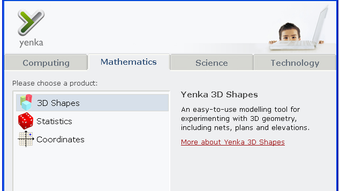


App details
- Version
- 3.2.7
- Size
- 65.80 MB
- Updated
- January 17, 2024
- Requires
- Windows 2000
- Language
- English
- License
- Free
- Developer
- crocodile-clips
- Category
- Windows OS
SoftPas in:
This product is also available in the following languages:
About Yenka
Download Yenka – Free Virtual Science Lab for Windows Schools
Overview
Yenka is a dedicated virtual science laboratory designed specifically for secondary‑school classrooms and home‑based learning environments. Developed as a free Windows application, Yenka belongs to the Science & Education software category and targets educators who need a reliable, low‑maintenance tool to demonstrate physics, chemistry, biology, and electronics concepts without the cost and safety concerns of a physical lab. The current release, version 3.2.7, was last updated on 31 May 2011 and remains fully compatible with Windows 2000 and earlier operating systems—a rare advantage for schools still operating legacy hardware. Since its inclusion in our catalog in 2011, Yenka has amassed more than 93,000 downloads worldwide, with a steady flow of new installations each week, especially in regions such as Vietnam, Morocco, and Canada where budget‑friendly educational resources are in high demand. The software’s lightweight footprint means it occupies far less disk space than the average education‑tool suite, allowing it to run comfortably on older machines that may have limited storage. With an intuitive, English‑only interface, Yenka offers a suite of pre‑built experiments, a drag‑and‑drop circuit builder, and real‑time data visualisation that help teachers transform abstract theory into interactive, observable outcomes. Whether you are setting up a single‑computer lab or equipping a whole department, Yenka provides a secure, no‑cost solution that can be downloaded instantly and updated manually when needed.
Core Features
- Virtual Physics Lab: Simulate mechanics, optics, thermodynamics, and wave phenomena with real‑time graphs and measurement tools.
- Chemistry Experiments: Conduct virtual titrations, gas laws, and solution mixing without hazardous chemicals.
- Biology Modules: Explore cell structures, genetics, and ecological systems through interactive 3‑D models.
- Electronics Builder: Drag‑and‑drop components such as resistors, capacitors, transistors, and LEDs to design and test circuits.
- Data Logging & Export: Capture experimental data and export to CSV for further analysis in spreadsheets or statistical software.
- Multilingual Support (Future Roadmap): Although currently English‑only, the codebase is structured to accept language packs, making localisation feasible for schools worldwide.
- Low System Requirements: Runs comfortably on machines with as little as 128 MB RAM and 50 MB free disk space.
- Teacher Dashboard: Create custom experiment sets, assign them to classes, and monitor student progress via built‑in reporting tools.
- Secure Offline Operation: All simulations run locally, ensuring student data never leaves the school network.
- Regular Community Updates: An active user forum provides downloadable experiment packs and scripts contributed by educators worldwide.
Installation & First‑Time Use
Getting Yenka up and running is straightforward, even for schools with limited IT support. Begin by visiting the official download page and clicking the Download Yenka button – the installer is a single 45 MB executable that works on any Windows version from 2000 onward. Once the file is saved, run the installer; the wizard guides you through a typical installation process: accept the license agreement, choose a destination folder (the default location is C:\Program Files\Yenka), and confirm that you want a desktop shortcut. Because Yenka is free, there are no hidden fees or registration steps, though the installer does ask for an optional email address to receive update notifications.
After installation, launch the application from the shortcut or Start menu. The first screen presents a welcome tour that explains the main workspace, navigation toolbar, and the library of pre‑built experiments. It is advisable to run the “Intro to Physics” module as a quick test; this demo showcases the real‑time graphing capability and confirms that the graphics driver is compatible. If the simulation runs smoothly, you can proceed to create a new project by selecting File → New Experiment. The drag‑and‑drop interface allows you to place objects from the left‑hand palette onto the central canvas, then adjust parameters such as mass, voltage, or temperature via the property inspector on the right.
For classroom deployment, teachers often export a master project file (.yka) and distribute it to student computers using a shared network folder. Because Yenka stores all settings locally, each machine can run the same experiment without requiring an internet connection after the initial download. Should you need to install updates, simply re‑download the latest installer from the website and run it; the installer will detect the existing version and perform an in‑place upgrade, preserving all custom experiments and user preferences.
Compatibility, System Requirements, Pros & Cons
Yenka is officially supported on Windows 2000, Windows XP, Windows Vista, Windows 7, Windows 8, and Windows 10 (32‑bit and 64‑bit). Although the software was initially built for older systems, it runs without issues on modern Windows installations thanks to its reliance on standard DirectX 9 graphics and the .NET Framework 2.0, both of which are included in recent Windows updates. Minimum hardware specifications are modest: a 500 MHz processor, 128 MB RAM, and 50 MB free hard‑disk space. For optimal performance, especially when running multiple simultaneous simulations, a dual‑core CPU and at least 256 MB RAM are recommended.
Pros
- Completely free, removing budget barriers for schools.
- Lightweight installer and low system requirements, perfect for older PCs.
- Comprehensive library of physics, chemistry, biology, and electronics simulations.
- Offline operation ensures student data privacy and reliable classroom use.
- Teacher dashboard for creating custom labs and tracking student progress.
- Active community providing extra experiment packs and troubleshooting help.
Cons
- English‑only interface limits accessibility for non‑English speaking regions.
- No native macOS, Linux, Android, or iOS versions, restricting cross‑platform use.
- Last major software update was in 2011, which may raise concerns about long‑term support.
- Lacks built‑in assessment tools such as quizzes or automatic grading.
- Advanced simulations (e.g., quantum physics) are not available.
Review Summary: Yenka delivers a solid, cost‑free virtual lab experience for Windows‑based schools. While its feature set is not as extensive as premium commercial suites, its ease of use, low hardware footprint, and reliable offline performance make it an excellent choice for budget‑conscious educators.
FAQ & Conclusion – Get Started with Yenka Today
Is Yenka really free for commercial school use?
Yes. Yenka is released under a free‑to‑use licence for educational institutions. There are no hidden fees, subscription costs, or mandatory registration steps required to install or run the software in a classroom.
Can Yenka run on modern Windows 10 computers?
Absolutely. Although the program was originally built for Windows 2000, it has been tested on Windows 10 (both 32‑bit and 64‑bit) and works without any compatibility patches. The only requirement is the presence of the .NET Framework 2.0, which is included by default in recent Windows updates.
What hardware do I need to run multiple simulations at once?
For smooth multitasking, a dual‑core processor (or better) with at least 256 MB of RAM is recommended. The software’s graphics are not GPU‑intensive, so integrated graphics on most modern laptops are sufficient.
Is there any way to add language support for non‑English speakers?
Yenka’s architecture allows for language packs, but an official translation has not been released. Some schools have created community‑sourced translation files that can be placed in the Languages folder to replace UI strings.
How can teachers monitor student progress?
The built‑in Teacher Dashboard lets educators assign pre‑made experiments, view completed project files, and export data logs for grading. While it does not include automated quizzes, the exported CSV files can be imported into learning‑management systems for further analysis.
In summary, Yenka stands out as a dependable, free virtual laboratory that fulfills the core needs of science teachers operating on Windows platforms. Its lightweight design, extensive experiment library, and teacher‑centric tools make it a practical choice for schools that cannot afford costly commercial suites. To experience Yenka for yourself, simply click the download button below, follow the quick installation steps, and start building interactive lessons that bring scientific concepts to life—without leaving the classroom.
Download Yenka now and empower your students with a safe, engaging, and cost‑free digital lab environment.
Guides & Tutorials
How to install Yenka
- Click the Download button above.
- Once redirected, accept the terms and click Install.
- Wait for the Yenka download to finish on your device.
How to use Yenka
This software is primarily used for its core features described above. Open the app after installation to explore its capabilities.
User Reviews
No reviews yet. Be the first to share your experience.
You may also like
more
Llama 2
Free-to-use large language model As the new addition to Meta’s arsenal of langua...

NotebookLM
Revolutionizing the note-taking and idea-generation process NotebookLM is an exp...
Github co pilot
AI-inspired software development and coding platform GitHub Copilot is a browser...

Google Gemma
Google’s lightweight AI models Introducing Google Gemma , a family of cutting-ed...

AI Image Enlarger
A free app for Windows, by ai-image-larger. AI Image Enlarger is a free software...

DALL E
AI-driven text-to-image transformation engine DALL·E is a free graphic and desig...